adgroup

Lunes, Agosto 28, 2017

How to use Shareit on pc

How to Use shareit on PC to Transfer Files To / From Mobile

Using ShareIt is one of the Fastest way to transfer files between mobile and Windows PC. In this tutorial, I am going to show you How to use shareit on pc to transfer files between mobile and PC.
How to use shareit on PC
You don’t need to use USB cable or internet when you use ShareIt. Of course, you need data or internet connection to download ShareIt application in PC and ShareIt app in mobile. ShareIt uses WiFi hotspot to transfer files. So it is very fast compare to bluetooth. ShareIt took 71 seconds to send 323 MB file. You can also send files and apps between two android mobiles by using ShareIt.
When you want to use ShareIt in your desktop PC, you must have WiFi LAN card or WiFi adapter. When you use Laptop, you don’t need any extra accessories. ShareIt app available for Android, iPhone and Windows phone. So you can transfer files from android or iPhone or windows phone to Windows PC.
Here I am showing you how to transfer files from android to/from Windows PC.

How to install ShareIt on WIndows PC

Before going to know about How to use shareit on pc, you need to install it on PC. Visit allshareit website from your PC. Download shareit for your windows version. If you use Windows 7, You can download SHAREit for Windows 7. You will receive setup file. Install the setup file. You will get “ShareIt” desktop icon.
Initially it will show some tips. Check don’t show again box.
You can change destination folder by going in to settings. Destination folder is your computer folder where you want to store received files.
shareit settings
  • Click on three lines symbol in top right corner shows that in above screen.
  • Click on “Settings”. You will see settings window shows that in below screen.
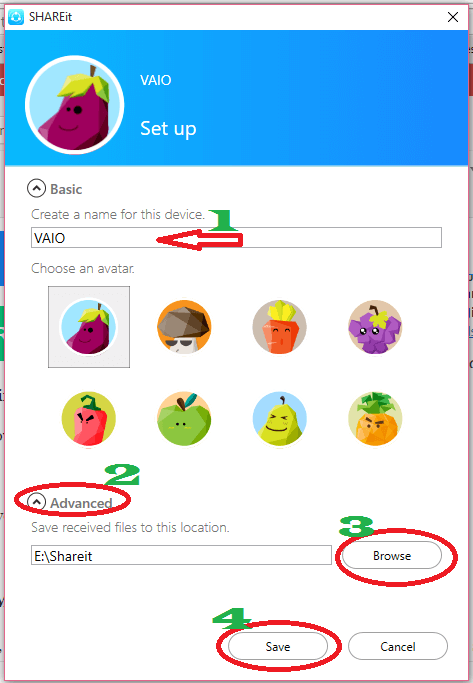
shareit advanced settings
  1. If you want, you can change your computer name. You will see this name in another device, when you use shareit.
  2. Click “Advanced” shows that in above screenshot. You will see an extra field.
  3. Click “Browse”. You will see your computer folders. Select any drive or folder. Here I have selected ‘E’ drive. It has created “ShareIt” folder in ‘E’ drive.
  4. Click “Save”.
Click on folder symbol in top right corner which is left to three lines symbol, to get access to this folder from shareit application itself.

How to install ShareIt on Mobile

You can get ShareIt app for android, iPhone and windows phone. If you had android,Go to Google play store in your android mobile. Install ShareIt app. I have already shared step by step procedure to use Shareit app in android.

How to Use shareit on PC to Transfer Files

You might have different shareit versions in PC and mobile. When two versions did not match, you can not send files.

Transfer files with Latest Version

If you have latest SHAREit version in your PC, you will see below screen after opening desktop icon. If you don’t see below screen, skip this method and read second method through which you can transfer files using older version.
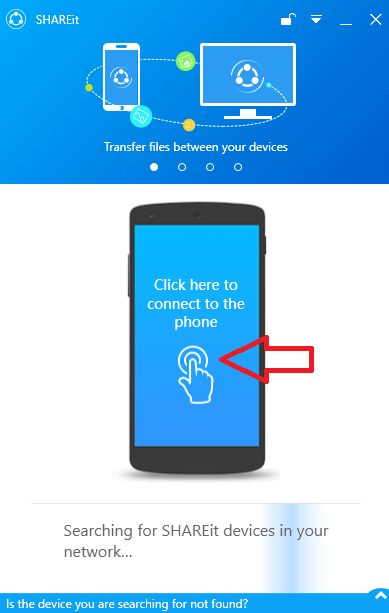
shareit desktop
SHAREit will start searching for devices. Just click on Mobile symbol shows that in above screenshot. Now you will see QR code on desktop.
Open SHAREit on Mobile phone. If you don’t have latest version, update app to latest version. If you don’t know how to update, just open Google play store and search for SHAREit, it will show update option instead install option.
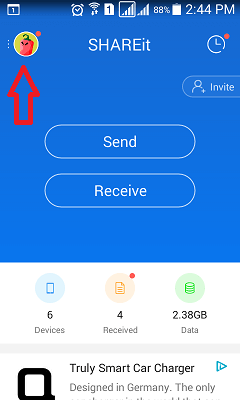
shareit mobile
Touch on symbol in top left corner shows that in above screenshot. You will see below screen.
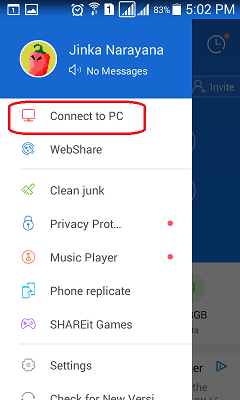
shareit mobile
Click Connect to PC. Mobile app will start searching for devices. If you don’t see any device name, the Click Scan to Connect option.
shareit mobile
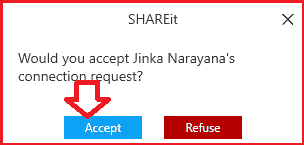
Scan QR code on desktop. Now it will show desktop PC name. Touch on PC name. Immediately you will see below screen on desktop. Select Accept.
how to use shareit on desktop
Now two devices are connected. If you want to send files from mobile to PC, just select Photos of Files option and browse mobile, select files and send to PC. If you want to send files from PC to mobile, just click on Files, browse computer and send files to mobile. For complete details, continue reading next method.

Transfer files with Old Version

When you want to send files from mobile to PC, click send in mobile app. When you want to send files from PC to mobile, you need click “send” on desktop application. Let us assume you are sending files from mobile to PC.

shareit app
Open ShareIt app in android mobile and Open ShareIt application from desktop icon in PC. That means open application at sender device as well as at receiver device. Below screen shows shareit screen in mobile.
Transfer files through shareit
Click on “Send” shows that in above screen. You will see below screen.
How to use shareit app
  • Select any one of the available tabs. If you want to send photos select photos tab. Here I have selected “Video” tab. Because I want to send video file.
  • Touch on a file which you want to send. You will see check mark right to file. And no.of selected files at “Selected” option,
  • Click “Next”.
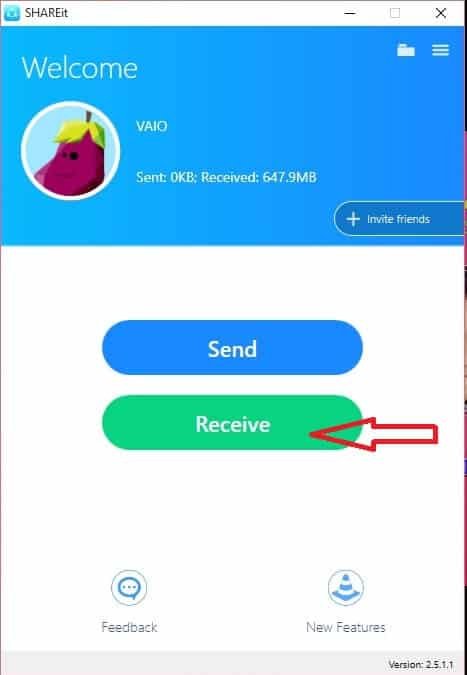
Open ShareIt application in PC. You will see below screen.
how to use shareit on pc
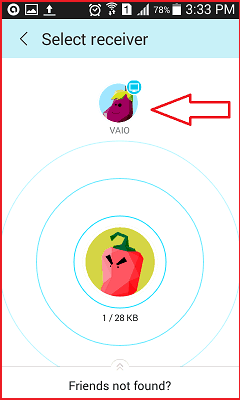
Click On “Receive”. Immediately, your mobile app will detect your PC name, shows that in below screenshot.
how to use shareit app
Touch on Your PC name in mobile app. Immediately it will send file to your PC.
Click on three lines symbol right to received file in your PC application. You will see options to open file or open file location.

Biyernes, Oktubre 21, 2016

How to Speed up a Slow Internet Connection

A slow internet connection wastes time, turns streamed videos into bad slideshows, and puts your computer in real danger of being lobbed out the window. Here are some steps you can take to fix or improve your connection.

Method 1
Optimize your browser

  1. Image titled Speed up a Slow Internet Connection Step 1
    1
    Switch to a different browser. Some people use Internet Explorer, which, while a decent browser, does use a lot of resources. Moreover, as web pages become more advanced, the number of processes necessary to load them grows, meaning you’re usually better off with a browser that can be customized to cut back on ads and other non-essentials.
    • Firefox has many extensions that allow for the ability to block elements such as JavaScript, advertisements, Flash, and other things until you enable them. One critical add-on is Adblock Plus, which virtually eliminates ads from your surfing experience and speeds up load time considerably. You may also want to try the add-on Fasterfox Lite, which will give Firefox enhanced speed options.
    • Google Chrome, while new, uses very little memory and can also be good for sites that have a lot of JavaScript and Flash. You may also want to try the FastestChrome add-on.
    • Opera has compression technology, (Opera turbo) specially designed for slow network connections. This has proved very effective for many.
  2. Image titled Speed up a Slow Internet Connection Step 2
    2
    Remove unwanted add-ons, extensions, and plugins. Though many plugins and add-ons can make your surfing experience more efficient, others make it difficult to perform instant page loads. (Non-essentials like themes, skins, and gizmos you’ve long since grown bored with are prime targets.) Try disabling these unnecessary plug-ins and add-ons to gain better browsing and downloading speed.
    • To turn off add-ons on Firefox, Go to Tools > Add-ons and disable both unwanted add-ons and plugins. Restart Firefox to put changes into effect.
    • To turn off add-ons on Google Chrome, Go to Customize > Tools > Extensions and disable unwanted plugins. Restart Chrome to put changes into effect.
    • To turn off Internet Explorer add-ons, Go to Tools > Manage Add-ons and disable unwanted add-ons. Restart IE to put changes into effect.
  3. Image titled Speed up a Slow Internet Connection Step 3
    3
    Close unused tabs. Even if you aren't looking at them, many pages automatically refresh themselves every few minutes or seconds to keep you in sync (news pages, Facebook, and Twitter are excellent examples). Close these when you’re not using them so they don’t eat up your bandwidth.
  4. Image titled Speed up a Slow Internet Connection Step 4
    4
    Allow (some) cookies and caching. While allowing cookies and caching means that parts of your browsing history or even your personal information will be tracked and/or stored, a lot of this is completely harmless and, in fact, allows pages to load more quickly. If you’re skeptical about opening the floodgates, keep your default setting to ban all cookies, then add sites you trust to your “Exceptions” list. Furthermore, don’t set your browser to automatically clear its cache every time it closes. Note that different browsers will allow different levels of customization as far as cookies and caching are concerned. To change these settings:
    • In Firefox, go to Tools > Options > Privacy.
    • In Internet Explorer, go to Tools (may look like a cog) > Internet Options > Browsing History and make sure Delete browsing history on exit is not checked. For more controlled deletion, go to Delete… and make sure Preserve favorite website data is checked.
    • In Chrome, go to Tools (may look like a wrench) > Settings, scroll down, then go to Show Advanced Settings > Privacy > Content Settings.

Method 2
Optimize your modem/router

  1. Image titled Speed up a Slow Internet Connection Step 5
    1
    Change your wireless device to a different channel. If you live close enough to your neighbors that you can see their wireless connections, it’s possible that your wireless device is being bogged down by having to broadcast on the same channel as them. To test this, download, install, and run a program like inSSIDer to scan wireless networks and their associated channels in your vicinity.
    • Find your wireless connection in the list (usually at the top). Look for the channel it broadcasts on, then compare this to the other channels being used. Ideally, it will be the only network on this channel (as in the example below), but this often isn't the case. (In fact, in crowded areas, this may not be even be possible.) Scout for a channel between 1 and 11 with few or no networks and make note of channels that are overburdened with many, many networks (in the example below, channel 6).
    • If necessary, change your wireless channel. Connect to your modem/router’s IP address (find the manual, check on the device itself, or look it up online), look for the broadcast channel among the settings (the location will vary depending on your device), and select an alternative from the drop-down list.
  2. Image titled Speed up a Slow Internet Connection Step 6
    2
    Reposition your wireless router. Either move it to the room where it will get the most use of position it centrally. Ideally, there should be a direct, unobstructed line between your computer and router.
  3. Image titled Speed up a Slow Internet Connection Step 7
    3
    Avoid interference from other wireless devices. In particular, cordless phones can be a real nuisance for your wireless internet connection, so if the two devices share a phone jack, space them as far apart as physically possible (or at least leave a few feet between them).
  4. Image titled Speed up a Slow Internet Connection Step 8
    4
    Use an Ethernet cable. Going wireless is liberating, but the tradeoff is signal interference, especially when it’s traveling through walls, and reduced overall performance. Make an Ethernet cable your first choice when connecting and save wireless for when you really need to do that Aaron-Sorkin-style walk and talk through the building.
  5. Image titled Speed up a Slow Internet Connection Step 9
    5
    Upgrade your device. An old modem/router may not be physically capable of accommodating the speed potential of your internet package.

Method 3
Optimize your Internet service package

  1. Image titled Speed up a Slow Internet Connection Step 10
    1
    Identify the speed your Internet Service Provider (ISP) is supposed to be providing. This is important because your slow connection could be due to a problem on their end, not yours. The exact speed should be on your bill. If you don't have a bill handy, you can check the ISP's website or contact them directly to find out.
  2. Image titled Speed up a Slow Internet Connection Step 11
    2
    Conduct a speed test online.[1] This should get you results close to what your ISP is supposed to provide. If you get a low result, try another computer on your network first. If both get a low result, contact your ISP. If only yours has a problem, then the problem lies with the computer.
  3. Image titled Speed up a Slow Internet Connection Step 12
    3
    Upgrade to a better package. If you’ve been using the same speed for years, you probably aren’t equipped to load today’s web pages, which are more intricate than ever. In particular, you might be missing out on streaming and downloading opportunities. If you’ve had the same provider for a long time, ask for a discounted upgrade in exchange for your continued loyalty. Otherwise, shop around for deals; many companies offer incentives if you switch to them.

Method 4
Optimize your computer

  1. Image titled Speed up a Slow Internet Connection Step 13
    1
    Eliminate needless programs. Your Internet connection requires memory to be able to be at the speed you are paying for. If your computer is bogged down by programs you don't need, your connection will be slower. Close programs you aren't using.
  2. Image titled Speed up a Slow Internet Connection Step 14
    2
    Do a virus and spyware scan. Viruses and spyware also use up memory which can contribute to a connection appearing slow. Run a thorough or complete scan of each even if you have it on and scanning. A regular scan will catch additional items. (See below if you need either of these programs for free virus and spyware scanning programs.)
  3. Image titled Speed up a Slow Internet Connection Step 15
    3
    Make sure you aren’t running two firewalls. These will interfere with each other and, in addition to posing security problems, also reduce your web performance. In particular, if you use Windows but have downloaded or purchased a separate firewall, double-check that you aren’t also running Windows Firewall (which is turned on as a default). Go to Search > Windows Firewall and, if necessary, hit Change Settings to turn it off.
  4. Image titled Speed up a Slow Internet Connection Step 16
    4
    Check your free space. If your hard drive is nearly full, take files you don't use often and either burn them to CD or DVD, place on an external hard drive, or delete them. Your computer uses free hard drive space as virtual memory, so a full hard drive will slow down your computer and your connection.
  5. Image titled Speed up a Slow Internet Connection Step 17
    5
    Run a disk defragmentation. This should be done once every two weeks. It will improve your overall performance which can only help your Internet connection.
  6. Image titled Speed up a Slow Internet Connection Step 18
    6
    Consider a computer upgrade. An older computer may not have the power to make use of many things on the Internet now. Even something as simple as a RAM (Random Access Memory) upgrade could help, but if your computer is more than five years old, it may be time to consider getting a newer model OR using a different operating system. Rolling back to an older windows version such as windows XP or trying out various Linux distributions, this often breaths life into an old computer. You can even get an OS that can boot directly to a browser if its the main thing you use it for (xPud, browserLinux, slitaz etc)!
  7. Image titled Speed up a Slow Internet Connection Step 19
    7
    Turn off your computer every night. Leaving your computer in standby mode without turning it on and off completely every day or so will tie up memory and can soon slow down your Internet speed. 
    source : http://www.wikihow.com/Speed-up-a-Slow-Internet-Connection

Linggo, Oktubre 9, 2016

Hugot Today ;)


1. "Hindi lungkot o takot ang mahirap sa pag-iisa kundi ang pagtanggap na sa bilyon-bilyong tao sa mundo, wala man lang nakipaglaban upang makasama ka."
2. "Kung dalawa ang mahal mo, piliin mo yung pangalawa.. kasi, hindi ka naman magmamahal ng iba kung mahal mo talaga yung una. "

3. " Alam mo ba kung gaaNo kalayo ang Pagitan ng dalawang Tao pag nagtalikuran Sila??
- Kailangan mo libutin ang buong mundo para makaharap ulit ang TAONG TINALIKURAN MO."

4. "Ang tenga kapag pinagdikit korteng puso...
Extension ng puso ang tenga, kaya kapag marunog kang makinig, marunong kang magmahal.."

5. "Pag may mahal ka at ayaw sayo, hayaan mo. Malay mo sa mga susunod na araw ayaw mo na din sa kanya, naunahan ka lang."

6. “Kung hindi mo mahal ang isang tao, 'wag ka nang magpakita ng motibo para mahalin ka nya..”

7. "Hinahanap mo nga ba ako o ang kawalan ko?"

8. "Kung nagmahal ka ng taong di dapat at nasaktan ka, wag mong sisihin ang puso mo. Tumitibok lng yan para mag-supply ng dugo sa katawan mo. Ngayon, kung magaling ka sa anatomy at ang sisisihin mo naman ay ang hypothalamus mo na kumokontrol ng emotions mo, mali ka pa rin! Bakit? Utang na loob! Wag mong isisi sa body organs mo ang mga sama ng loob mo sa buhay! Tandaan mo: magiging masaya ka lang kung matututo kang tanggapin na hindi ang puso, utak, atay o bituka mo ang may kasalanan sa lahat ng nangyari sayo, kundi IKAW mismo!"

9. "Lahat naman ng tao sumeseryoso pagtinamaan ng pagmamahal. Yun nga lang, hindi lahat matibay para sa temptasyon."

10. "Kung maghihintay ka nang ng lalandi sayo, walang mangyayari sa buhay mo.. Dapat lumandi ka din.." ( parang ayaw ko ito, haha )

11. "Gamitin ang puso para alagaan ang taong malapit sayo. Gamitin ang utak para alagaan ang sarili mo."

12. "Huwag mong bitawan ang bagay na hindi mo kayang makitang hawakan ng iba."

13. "Huwag mong hawakan kung alam mong bibitawan mo lang."

14. "Hiwalayan na kung di ka na masaya. Walang gamot sa tanga kundi pagkukusa."

15. "Huwag na huwag ka hahawak kapag alam mong may hawak ka na."

16. "Parang elevator lang yan eh, bakit mo pagsisiksikan ung sarili mo kung walang pwesto para sayo. Eh meron naman hagdan, ayaw mo lang pansinin."

17. "Pag hindi ka mahal ng mahal mo wag ka magreklamo. Kasi may mga tao rin na di mo mahal pero mahal ka. Kaya quits lang."

credits : akoayPilipino

Huwebes, Oktubre 6, 2016

subject +love= hugot


"Parang kang math maraming solusyon, science maraming condition, english maraming generation pero sa iyo ang aking destinasyon, kailangan ko ang iyong desisyon dahil ikaw lamang ang aking inspiration...


-   Credits : jokespinoy

Miyerkules, Oktubre 5, 2016


Address : Pilar village las pinas